Escalation Rules
If you select the "Escalation Rules" menu entry, a table displaying all currently existing escalation rules will be shown, as illustrated in the following image.
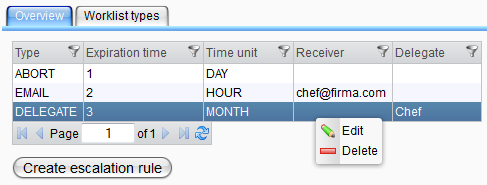
Right-clicking a table row opens the context menu. You can edit or delete an item by selecting the corresponding menu entry. To delete multiple entries, mark all entries you wish to remove, open the context menu, and select "Delete." To create a new rule, click the "Create" button. The dialog displayed in the image below will then appear.
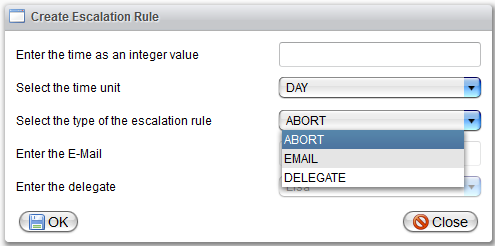
Depending on the type selected for the rule, you may choose a delegate, an email address, or leave it empty.
If you wish to view the escalation rules alongside their registered types, click on the "Worklist Types" tab. Here, all escalation rules are shown with the types they are associated with, which may result in some rules appearing multiple times. If you are only interested in one specific type, utilize the filter option of the table. The displayed table also features a context menu with "Edit" and "Delete" options. Deleting an escalation rule in this context means it will be unregistered for that type but will remain available for all other types that reference it, as well as for future references. Conversely, editing a rule will affect all other types associated with it, so please proceed with caution.

To add an escalation rule to a work list type, use the button at the bottom of the page. A dialog similar to the one in the next image will be displayed.
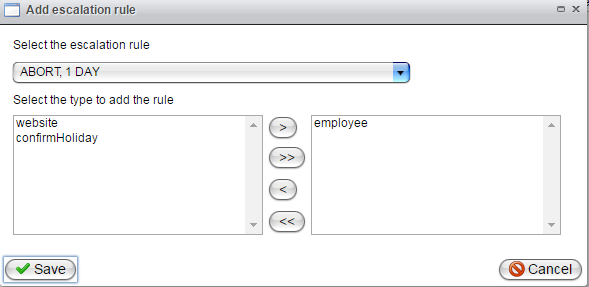
Registering a rule for a type means that if an item of that type is not completed after the configured time, the corresponding action of the escalation rule will be executed.
In the dialog, the right side displays all types for which the selected escalation rule is registered. The left side shows the types that do not have the escalation rule registered. Move a type name from left to right to register it or from right to left to remove it. If you select a new escalation rule, a dialog will prompt you to confirm whether you want to save your changes (if any changes have been made).